

In today’s highly connected world, social media platforms such as LinkedIn greatly aid professional networking and career advancement.
On the other hand, you can choose to tidy your smartphone or take a break from the continual alerts at some point. Deleting the LinkedIn app from your mobile device is a simple way to improve your privacy, make more room, or disconnect from technology.
This post explains how to remove the LinkedIn app on iOS or Android.
In addition, it provides helpful advice on how to manage your LinkedIn account and keep your data safe when the app is deleted.
So, we decided to walk you through the details and answer the “How to delete the LinkedIn app?” question on Ideasocial, whether you’re an expert tech user or just starting.
First, let’s become familiar with the common reasons that cause users to think about deactivating their LinkedIn account:
If you’re considering removing the LinkedIn app from your device, you may also want to tidy up your profile before stepping away. One effective way to do this is by cleaning out older updates or articles. Our step-by-step guide on how to delete multiple LinkedIn posts will help you manage your content quickly and efficiently.
Why do LinkedIn users delete their accounts?
Job-seekers, professionals, and those looking to further their careers all utilize LinkedIn, a platform for professional networking.
Still, there are a small number of people who choose to remove their LinkedIn profiles, and the few typical reasons are as follows:
- Privacy Concerns: More people are concerned about how their data is utilized. LinkedIn gathers user data such as career background, contact information, and surfing behavior. So, the first reason users think about deleting LinkedIn is their privacy, which can help secure personal data.
- Lower Online Presence: Some try to minimize their internet presence. Multiple social media identities can be unnecessary because their professional image is strong enough without LinkedIn. In the second step, if we want to talk about the other cause of their LinkedIn account deletion, reducing their digital footprint is the topic.
- Job Search Finish: LinkedIn is often utilized for job searching. However, users may no longer require the platform after getting a new job. Therefore, they can remove and uninstall an inactive LinkedIn account.
- Platform Tiredness: LinkedIn, like other social networking apps, can be time-consuming and intimidating. Platform fatigue can result from notifications, connection requests, and updates. For this purpose, deleting the LinkedIn account can simplify life and decrease digital distractions.
- Alternative Platform Preference: Some people prefer other professional networking platforms or personal websites. They can choose these alternatives and delete their LinkedIn account.
- Career alteration: LinkedIn may be less important for job changers, particularly those leaving corporate America. Entrepreneurs, freelancers, and non-professionals may not value LinkedIn profiles. So, the sixth reason we, career alteration, is the cause of LinkedIn app deletion.
- Personal Reasons: Retirement, long-term travel, and personal priorities can cause LinkedIn account deletion. These lifestyle changes can make business networking less relevant.

Because you now know the seven most popular and reasonable reasons why LinkedIn users choose to deactivate their accounts, let’s explore how to remove the app from Android and iOS.
Deleting the LinkedIn app can help declutter your phone, but managing your account details is just as important. If you’re handling multiple profiles, you may wonder what happens when you use LinkedIn accounts with the same email. Our guide explains how to deal with this issue effectively.
What are the procedures for deleting the LinkedIn App? (Android & iOS)
If you’ve decided to remove the LinkedIn app from your mobile device, here are the steps to take on both iOS and Android:
1. IOS: iPhone & iPad
- On your home screen, you should see the LinkedIn app.
- Hold down the LinkedIn app symbol until all your applications shake. A little “X” will appear in the icon’s corner.
- From inside the LinkedIn app, tap the “X” button. A confirmation dialogue box will appear.
- To delete the app, tap “Delete” on the confirmation window.
- To get out of jiggle mode, press the Home button or swipe up from the bottom (whatever applies to your iOS version).

2. Android
- You can locate the LinkedIn app in the app drawer or on the home screen.
- Hit and hold the symbol for the LinkedIn app.
- Depending on your device, an “Uninstall” button can be at the top or bottom of your screen.
- Press “Uninstall” or drag the app’s icon to the “Uninstall” menu.
- A dialogue box will pop up asking you to confirm the deletion. Press “OK” or “Uninstall” to validate.
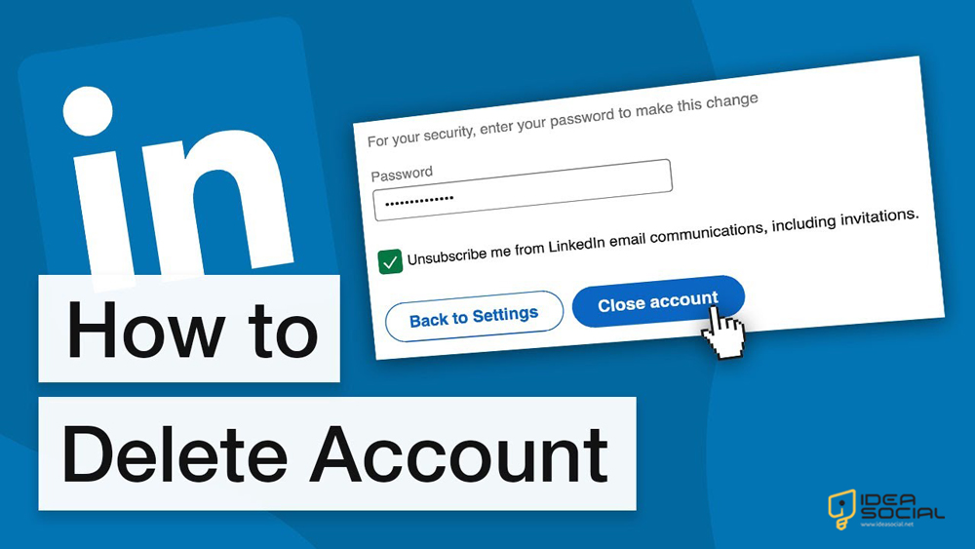
Be careful: Deleting your LinkedIn account requires your password. This is a precautionary step to ensure that only the account holder can do this.
The problem of forgetting the password may now arise. Is there anything you should do now?
If you are concerned about this, we recommend reading “How to delete a LinkedIn account without logging in?”
What are the additional tips to consider when deleting a LinkedIn account?
Suppose you want everything to go smoothly and your data correctly handled when you deactivate your LinkedIn account. In that case, there are a few things to think about and do beforehand for your consideration are these:
Save Your Information
Before removing the LinkedIn app, ensure you’ve backed up any crucial data, such as contacts or messages. You can do this by exporting your LinkedIn relationships or by storing communications that are significant to you.
Managing Accounts
You can still access your LinkedIn account even after uninstalling the app. However, you must deactivate or delete it via the LinkedIn website.
Installation process reload
If you change your mind, you can reinstall LinkedIn after it has been deleted from the App Store (iOS) or Google Play (Android).

How do you activate the LinkedIn account after deletion?
As mentioned above, with LinkedIn, you can access your account from any web browser, even after removing the app:
- Launch LinkedIn by going to com on your choice web browser.
- Log in with your credentials.
- Like the app, you can change your profile, see your messages, make connections, and adjust your preferences here.
Conclusion
Removing the LinkedIn app from your phone is relatively easy, no matter your operating system. Follow the on-screen instructions to uninstall the app from your phone or tablet.
In addition, if you deactivate the app from your device, you will still have control over your professional information if you follow the many suggestions for maintaining your LinkedIn account and data.

Before you proceed, gather your crucial files, check your account settings, and learn the difference between deleting an app and an account.
You can manage your professional network and profile on LinkedIn using the platform’s web browser.
These guidelines allow you to safely uninstall the LinkedIn app without compromising your data or privacy. Whether you’re looking to simplify your device, take a vacation from social media, or increase your privacy, this guide will help you accomplish so with simplicity and clarity.
Can you tell us whether you enjoy LinkedIn? Has the idea of removing your LinkedIn account crossed your mind?
Finally, if you have any experience with the “How to delete the LinkedIn app?” topic, please comment and share it with us; we would appreciate it.
FAQs
How can I delete LinkedIn on my iPhone?
Find the LinkedIn app on your iPhone's home screen, press and hold the symbol until it jiggles, then hit the "X" in the corner to remove it. Tap "Delete" in the popup dialogue to confirm.
How can I delete LinkedIn on Android?
Android users can locate LinkedIn on their app drawer or home screen, tap and hold the app icon, and select "Uninstall" from the alternatives. Then, tap "OK" or "Uninstall" in the confirmation dialogue.
Will removing the LinkedIn app delete my account?
Your LinkedIn account will not be deleted when you remove the LinkedIn app. You can still access your LinkedIn account online.
What should I do before deactivating LinkedIn?
Before removing the LinkedIn app, export your connections and save crucial communications. Then, review and cancel LinkedIn memberships as needed.
Is LinkedIn account management possible after app deletion?
Yes, you can manage LinkedIn from a browser after deactivating the app. Enter your credentials at linkedin.com to modify your profile, connections, and settings.