


Instagram Highlights are one of those features that seem simple, yet many users pause and wonder: “How do I actually see them? Where are they?” You’re in the right place. In this guide, I’ll walk you through everything you need — from enabling archives to troubleshooting missing highlights, even third-party tools (and whether you should use them).
What Are Instagram Highlights?
Instagram Highlights are curated collections of your past Stories that you choose to pin permanently on your profile. Unlike standard Stories that disappear after 24 hours, Highlights stay visible until you remove them.
Difference Between Stories and Highlights
Stories: Live for 24 hours by default, then vanish (unless archived).
Highlights: You hand-pick stories and bundle them into a “highlight section.” These stay on your profile indefinitely (until deleted).
Highlights appear as circular icons under your bio and above your feed grid.
Viewing Instagram Highlights is simple, but knowing who has viewed yours gives you deeper insights into your audience. Once you understand the basics, explore our detailed guide on Instagram showing who viewed your Highlights to track engagement effectively.
Why Use Highlights on Your Profile
They serve as a permanent showcase for your best content: tutorials, product features, FAQs, behind-the-scenes, etc.
They improve first impressions: new visitors often see Highlights before browsing your feed.
They help you organize content thematically — instead of a random archive, you can display your best stories in coherent clusters.
For businesses, you can use Highlights to showcase testimonials, product demos, pricing information, etc.
Enabling Story Archive (Prerequisite)
To use Highlights, Instagram needs to save your Stories in an archive so you can later select from past stories. If archive is disabled, old stories vanish completely.
Enabling Archive on iOS
Open Instagram → Go to your profile.
Tap the three horizontal lines (menu) → Settings & privacy.
Go to Settings → Privacy → Story.
Under Saving, toggle on Save to Archive.
Now your Stories will be saved once the 24-hour period ends.
Enabling Archive on Android
The steps are almost the same:
Profile → menu (three lines) → Settings & privacy.
Tap Settings → Privacy → Story.
Enable Save story to archive (or similar wording).
Once this is on, your past stories will be accessible for Highlights.

How to View Instagram Highlights (Simple Steps)
Now that archive is enabled, here’s how you view Highlights.
From Your Own Account
Go to your Instagram profile.
Below your bio, you’ll see circles labeled with your Highlights.
Tap any circle to open that Highlight, then swipe through the included stories.
From Someone Else’s Public Profile
Open Instagram → search for their profile.
On their profile page, look just under their bio: if they have any Highlights, those will appear as circular icons.
Tap the circle to view that person’s Highlight.
If the profile is private and you don’t follow them (or they haven’t accepted your follow request), you won’t see their Stories/Highlights.
On Web / Desktop
As of now, Instagram’s web interface also supports Highlights (if the user has them):
Go to Instagram.com in browser → open any profile.
Below bio area, see circular highlights (if available).
Click to view.
Note: UI may differ slightly depending on updates.
Tips If Highlights Don’t Appear
Sometimes you might expect a highlight but see nothing. Here are common causes.
Profile Privacy / Settings
If a profile is private and you don’t have permission, Highlights won’t be visible.
If the user removed all Highlights or hasn’t created any yet, you’ll see nothing.
If archive is off for your own account, you may have no stories to add as highlights.
Instagram App Updates / Bugs
Ensure your Instagram app is updated — UI changes or bugs might hide the Highlights section temporarily.
Sometimes logging out and back in helps.
Clear cache (on Android) or reinstall the app if something is glitched.
Highlight Was Deleted or Not Created
The user might have deleted the Highlight or removed all stories inside it.
Or the Highlight never existed — often you assume it’s there, but perhaps it wasn’t created.

Managing and Editing Highlights
Beyond just viewing, you’ll want to create, edit, and personalize your Highlights.
Creating New Highlights
Go to your profile → tap the “+ New” circle below your bio.
Select stories from your archive that you want to include.
Tap Next → choose a cover image and name your Highlight.
Tap Add (iOS) or Done (Android).
Editing Existing Highlights (Add / Remove Stories)
Press & hold the Highlight on your profile.
Tap Edit Highlight.
Select or unselect stories to include or remove.
Tap Done.
You can also rearrange the order of Highlights by pressing & dragging.
Changing Highlight Covers and Names
Edit the Highlight as above.
Tap Edit Cover.
Choose a story inside that highlight or upload a custom image from your phone.
Enter a new name (if desired).
Confirm changes.
Custom covers and names make your profile look neat, consistent, and on brand.

Viewing Who Saw Your Highlight
One question many have: “Who viewed my Highlight?”
Insight Limitations (Stories vs Highlights)
While a Story is live (within the 24-hour window), you can see exactly who viewed it (usernames).
Once it’s no longer live, Instagram only shows view counts, not individual names, even in a Highlight.
After a story is added to a Highlight, the identity of viewers is no longer accessible.
Best Workaround & Tips
If you want to see who viewed something, check the viewer list before the story expires (within 24 hrs).
You can take screenshots or notes of viewer lists while the story is active.
Consider using Instagram Insights (for business accounts) to see aggregate stats: reach, impressions, etc.
Anonymous / Third-Party Tools to View Highlights
Some services claim they let you view Instagram Highlights anonymously or even for private profiles. Let’s break down what you should know.
What They Claim to Do
Let you input a username and view highlights or stories without logging in (or without the owner knowing).
Some allow downloading of images or videos.
Others advertise full anonymity or incognito viewing.
Privacy, Limitations & Risks
Many of these tools work only for public accounts. They can’t bypass privacy settings.
Some may cache or store content or user data.
The legality or legitimacy of using them is murky: you’re often violating Instagram’s terms of service.
Downloaded content may be watermarked, compressed, or lower quality.
Legal & Ethical Considerations
Always respect others’ privacy and terms of service.
Using such tools for stalking, harassment, or infringing copyright is not ethical (or legal in many places).
If someone has a private account, they have chosen to restrict viewers — respect that boundary.

Frequently Asked Scenarios
Viewing Highlights of Private Accounts
Impossible unless the user has accepted you as a follower (and their stories are set to allow followers to view). Private accounts restrict Stories and Highlights to approved followers.
Highlights Not Showing on Profile
They may have been deleted or renamed.
Instagram could be rolling out UI changes (e.g. moving Highlights to a separate tab).
App bug or update may be affecting visibility.
There is a report that Instagram may move Story Highlights to a separate tab on the profile interface.
Highlights Moved to Different Tab (UI Changes)
Instagram often evolves its interface. Some users have noted that Highlights might be placed in a new tab beside the grid in profile view.
If you don’t see the circles under the bio anymore, look for new tabs or icons labeled “Highlights” on the profile.
Best Practices for Instagram Highlights
To make the most of Highlights, don’t just “dump” random stories curate and strategize.
Organize by Theme / Category
Group your stories by logical topics:
FAQs
Testimonials
Tutorials
Behind-the-scenes
Featured products
This helps visitors find what they want quickly.
Use Custom Covers & Branding
Design minimal, cohesive icons or covers (using tools like Canva).
Use consistent colors, fonts, icons that align with your brand.
Upload custom covers instead of default story thumbnails.
Keep Highlights Fresh & Updated
Remove outdated stories.
Add new content periodically.
Rotate seasonal or campaign-based Highlights.
Leaving stale content gives a tired impression.
Use Highlights Strategically
Here are some smart content ideas for Highlights:
FAQs: Answer common questions so people don’t DM you.
Testimonials / Reviews: Showcase social proof.
Tutorials / How-tos: Turn helpful stories into evergreen content.
Events / Campaigns: Save limited-time promotions for later viewing.
Future Changes & What’s Next
Instagram’s UI Updates & Tab Changes
As mentioned earlier, Instagram might relocate Highlights to a different tab or reorganize the layout.
Stay alert to new app updates. What’s intuitive today might shift tomorrow.
Speculations & What to Watch
More advanced analytics for Highlights viewers.
Better embedding or API support (for websites) to show Highlights externally.
More design options for covers, templates, themes.
Summary & Final Thoughts
Viewing Instagram Highlights is simple—just tap the circle on a profile. But the deeper understanding lies in enabling archives, managing highlights well, and troubleshooting when things go missing. While third-party tools offer temptations for anonymous viewing, they come with risks and ethical concerns.
Use Highlights smartly: curate content, brand your covers, update them regularly, and treat them as an extension of your profile’s first impression.
When it comes to sharing and preserving our best moments on Instagram, Highlights have been a game-changer.
Highlights on Instagram provide you the power to create and display enduring experiences, in contrast to standard Stories that vanish after 24 hours.
Here, you will find all the information you need to access these collections on Instagram, whether you are new to the app or just want to know how!
To make sure you don’t miss any of those precious moments, we’ll show you “How to easily access Instagram Highlights?” in this article on Ideasocial.
In the first step, let’s have a quick look at the definition of these features of Instagram:
Describe Instagram Highlights: What Are They?
First, let’s get the definition of Instagram Highlights straight before we go into the how-to.
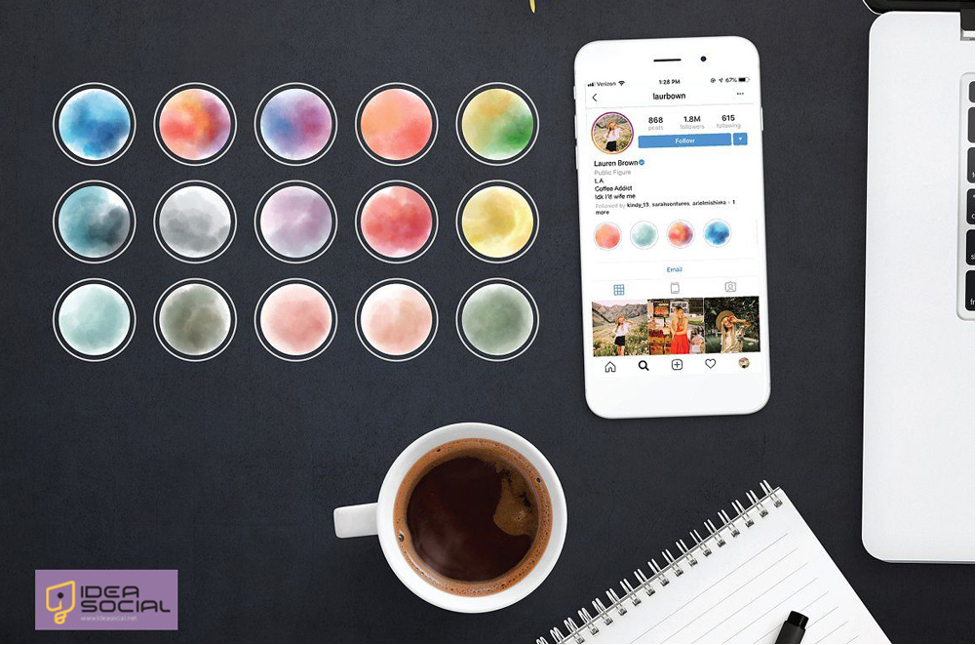
Instagram users have the option to keep collections of Stories on their profile for longer durations, which are called Highlights.
They have the shape of circles and are located underneath an Instagram profile’s bio. Followers can quickly peruse a user’s content in a more organized fashion by sorting highlights into categories like travel, cuisine, or personal achievements.
What Are the Reasons for Using the Instagram Highlights?
Instagram Highlights are a great way to save and showcase your Stories for longer than the usual 24 hours.
Users can create themed collections where they can preserve and arrange their most important or exciting Stories, making it more straightforward for followers to find and explore information that interests them.
Highlights on Instagram are an effective way for influencers and companies to showcase their goods and services, emphasize their brand identity, and keep their audience engaged.
Users can improve the visual attractiveness of their profile, keep their followers engaged with constant updates, and make sure their most significant content stays visible and influential by carefully selecting Instagram Highlights.

Viewing Instagram Highlights on Mobile & Desktop
Instagram highlights let users keep and share their favorite stories for more than 24 hours, which is excellent.
Knowing how to see Instagram Highlights can improve your Instagram experience, whether you’re following a buddy or an influencer.
A quick and straightforward method to viewing Highlights on mobile and desktop:
Mobile
- Launch the Instagram app on your mobile device to see Instagram Highlights.
- Afterward, go to the profile of the person whose highlights you want to see or touch on your profile are located in the bottom right corner.
- Locate the row of circular icons right below the bio and profile picture—these constitute the Highlights—slightly below the top of the profile page. Scroll down a little to see them.
- You can open a Highlight by tapping on one of these circular symbols; then, you can swipe left or right to see the stories within that Highlight.
- Like with regular posts and Stories, you can engage with the content by liking, commenting, or sending a direct message.
Desktop
- Instagram Highlights can be seen on desktop computers by opening a web browser and going to Instagram.com. You can access your account by logging in using your credentials.
- To access your profile or the profile of the person whose Highlights you want to see, click the profile symbol in the upper right corner once you’ve signed in.
- You can find the Highlights part of a profile right below the bio and profile photo if you scroll down a little bit from the top of the page.
- To see what’s within a Highlight, just click on its symbol; to see all the Stories inside, use the arrows or scrollbar.
What are the Tips for Viewing Instagram Highlights?
In the event that you are unable to see certain Instagram Highlights, the proprietor of the account may have set them to private or limited access; thus, it is a good idea to verify the privacy settings.
Additionally, in order to guarantee that you have the best possible viewing experience, make sure that you are using the most recent version of the Instagram app.
Finally, looking through the Instagram Highlights of other profiles might give you ideas and motivation for your content.
Conclusion
A terrific method to appreciate and engage with content that users wish to exhibit beyond the typical restriction of 24 hours for a Story on Instagram is to see Instagram Highlights.
You will have the ability to readily access and enjoy the curated moments that other users publish on their accounts, provided that you follow these simple instructions.
Highlights on Instagram provide a glimpse into the most memorable events of a user’s life, which can be helpful for a variety of purposes, including keeping up with friends, finding new material, and looking for inspiration.
The world of Instagram Highlights is waiting for you to go into it. Explore the world now and discover the fantastic stories that are waiting for you!
Remember to follow us at Ideasocial so that you can get further advice and updates on how to master Instagram.
Help your friends see the full potential of Instagram Highlights by sharing this tutorial with them and guiding them through the process.
In the end, share all your ideas on the topic of “How to access Instagram Highlights easily?” and also tell us if you use the highlight feature of Instagram.
FAQs
What is the best way to get Instagram Highlights on the go?
To see a user's Highlights, use the Instagram app, go to their profile, and touch the circular symbols located below their bio.
Will Instagram Highlights work on a desktop computer?
You can see a user's Highlights by visiting their profile on Instagram, logging in, and then clicking the icons underneath their bio.
My Instagram highlights aren’t showing up. Why is that?
If the account owner has set particular Instagram Highlights to private or restricted, you may not be able to view them.
Where can I obtain a list of highlights of the highlights of the Instagram accounts?
Find the circular Highlight icons beneath each profile's bio to see their saved Stories.
How can I fix the problem where Instagram Highlights won’t load?
If you're experiencing issues loading Highlights on Instagram, try updating your app, checking your internet connection, and restarting the app.
Can I view Highlights of someone without following them?
Only if their account is public and they’ve enabled storage of stories. Private accounts restrict access.How long do Highlights stay on Instagram?
They stay until you manually delete them (they don’t expire like stories).Can I tell who viewed my Highlight?
Not after the 24-hour story window. You only see view counts in a Highlight.Why don’t I see the Highlights section on someone’s profile?
They may not have created any Highlights, might have deleted them, or the UI may have changed.Is it okay to use third-party apps to view others’ Highlights?
It’s risky. Many violate Instagram’s terms and can infringe on privacy. Use caution and respect boundaries.